Prop firms · 8 min read
Free cTrader overlay for live prop-firm targets
Pinelive Funded Targets is a free cTrader Automate overlay that draws profit, daily-loss, and drawdown floors on the chart. After you pass, it still shows a payout target so you keep an in-mind goal.
Updated 2026-11-12 · TradeLogger Research
Quick answer
Download the free Pinelive Funded Targets cTrader indicator, attach it to a chart, and set start balance plus profit, daily-loss, and max-drawdown percents copied from your evaluator. It draws those levels live, counts trading days and consistency from local history, and can poll an FTMO public live-MetriX share URL. After the overlay reads PASSED, it still prints an estimated payout so you keep a psychological in-mind target instead of treating the account as unlimited. The firm dashboard remains official; the overlay is a chart HUD, not a pass certificate.
A prop evaluation fails in the last few hundred dollars of headroom more often than in the big picture. You can be green on the day and still kiss the daily-loss floor, or sit past the profit percent with too few trading days. Looking at P/L in the account bar is not the same as seeing the three lines that actually bind the account: profit target, daily-loss floor, and max-drawdown floor.
Pinelive Funded Targets is a free cTrader Automate overlay we publish so those lines sit on the chart you already trade. Download it from the cTrader funded-targets tool. Pair it with a prop firm trading journal for screenshots and tags. The overlay does not replace FTMO, Apex, or any other official dashboard.
What the overlay shows while you are in the challenge
On the last bar it redraws three dotted horizontals: lime profit line, orange daily-loss floor, red max-drawdown floor. The top-left HUD prints CHALLENGE, PASSED, FAILED, or DAILY LOCK, plus dollars still needed to pass and cushion above the drawdown floor. Local equity and percent toward the profit target update from Account.Equity against the start balance you entered.
- Profit target line = start balance × (1 + profit target %).
- Daily floor = day-start equity minus daily-loss % of either start balance (FTMO-style) or day-start (when Daily $ is % of start is off).
- Max-drawdown floor = static from start, trail from peak, or Apex trail that never lifts the floor above start.
- Trading days = unique entry dates from History plus open Positions.
- Consistency = best closed-day net profit / total closed-day net profit when a consistency cap is set.
Status is FAILED if an evaluation-day window expired, equity is at or below the drawdown floor, or daily loss is breached and Daily loss fails challenge is on. If daily loss is a lock rather than a fail, you get DAILY LOCK. If profit percent, min trading days, and consistency all clear, you get PASSED.
Why keep a target after you have already passed
Passing removes the evaluation scoreboard. That is when a lot of traders size up, skip the daily floor, and give the funded account back in a week. The overlay is built so PASSED is not a blank chart. The detail line estimates payout as max(0, equity − start) × profit split % (default 80). The same daily and drawdown floors stay live. You still have an in-mind number: the next payout chunk, and the two lines that end the account.
That is psychology, not a new firm rule. The split percent is a parameter you type. Official payouts, scaling, and withdrawal windows live in the evaluator’s terms. Use the HUD as a reminder to keep trading the same process you used to pass, then log the session in TradeLogger with screenshot, R, and emotion so the funded phase has a journal, not only a gold PASSED stamp.
Optional FTMO live-MetriX share
If you paste a public share URL of the form trader.ftmo.com/live-metrix/{login}/share/{code}, the indicator extracts login and share code and GETs gw2.ftmo.com/public-api/v1/metrix/{login}/{code} with a pinelive-ctrader user agent. It reads initialBalance, equity, balance, profit / maxDailyLoss / maxLoss percentages and statuses, accountStatus, accountStageType, and minTradingDays. Refresh defaults to 20 seconds (minimum 5).
That block is a convenience HUD of numbers FTMO already exposes on a share link. It is not a private API key integration and it is not TradeLogger’s cTrader Open API connection. For account fills in the journal, use Connect cTrader to your trading journal. For challenge process, use How to track FTMO challenge performance.
Install on cTrader Automate
- Download PineliveFundedTargets.cs from /tools/ctrader-funded-targets (or /plugins/ctrader/PineliveFundedTargets.cs).
- In cTrader, open Automate → Indicators. Create a new overlay indicator or add the .cs file to your indicators folder.
- Paste the source, Build, then attach PineliveFundedTargets to the chart you trade.
- Copy start balance, profit %, daily loss %, max drawdown %, min days, consistency, eval days, and profit split from the current evaluator contract—not from this article.
- Set Trailing DD and DD locks at start (Apex) to match how that firm computes the floor.
- Optional: paste the FTMO live-MetriX share URL. The indicator needs FullAccess for that HTTP call.
- Re-attach after you rebuild. Confirm the three lines sit where you expect versus the official dashboard before you size a trade.
Parameters you must copy from the firm, not from memory
| Parameter | What it drives |
|---|---|
| Start balance | Base for profit line, static DD, and FTMO-style daily % of start |
| Profit target % | Lime pass line and PASSED check |
| Daily loss % | Orange floor; optional fail vs daily lock |
| Max drawdown % | Red floor; 0 disables DD fail |
| Trailing DD / DD locks at start | Peak trail vs Apex lock-at-start vs static |
| Min trading days / consistency cap / eval days | Local History math; not official FTMO scoring unless they match |
| Profit split % | PASSED payout estimate only |
| FTMO share URL / refresh | Optional live-MetriX poll |
Account types change. If overlay math and the evaluator disagree, stop and use the evaluator.
How this sits next to the journal
The overlay answers “where is the account versus the three lines right now?” The journal answers “did this trade follow the plan?” Screenshot the chart with the overlay visible so the review shows headroom at the moment of the trade. Tag setup, session, and whether size respected remaining daily cushion. Sanity-check dollars with the prop drawdown calculator if you want a second unofficial estimate. For Apex trailing lock behavior, also read How to track an Apex evaluation.
Frequently asked questions
Does this overlay replace the FTMO or prop-firm dashboard?+
No. Local lines use the percentages you type. The optional share URL reads FTMO public live-MetriX JSON. If the HUD disagrees with the evaluator client area, the evaluator wins. TradeLogger does not certify challenges or payouts.
Is Pinelive Funded Targets free?+
Yes. The source is a cTrader Automate indicator you download, build, and attach. No TradeLogger subscription is required to use the overlay.
What happens after the account shows PASSED?+
The overlay stays on the chart. Status switches to PASSED and the detail line estimates payout from profit above start balance times your profit-split percent. Daily-loss and drawdown floors keep updating so funded trading still has an in-mind target and a visible fail line.
How do I attach FTMO live numbers?+
Open your public live-MetriX share link (the trader.ftmo.com/live-metrix/<login>/share/<code> URL) and paste it into the FTMO share URL parameter. The indicator maps that to FTMO’s public-api MetriX endpoint and refreshes on the interval you set (default 20 seconds). If the URL is empty, only local math runs.
Which drawdown modes are supported?+
Static from start balance (typical FTMO-style max loss), trailing from peak equity, and Apex-style trail that locks the floor so it cannot rise above start. Copy the mode from your current contract. Defaults in the file are examples, not your live rules.
Does it work without internet?+
Local equity, profit line, daily floor, drawdown floor, trading days, and consistency use cTrader Account, History, and Positions. The FTMO share block needs FullAccess and TLS to gw2.ftmo.com. If fetch fails, the HUD shows a share error and keeps local lines.
Related guides
- How to Track Performance for FTMO Challenges
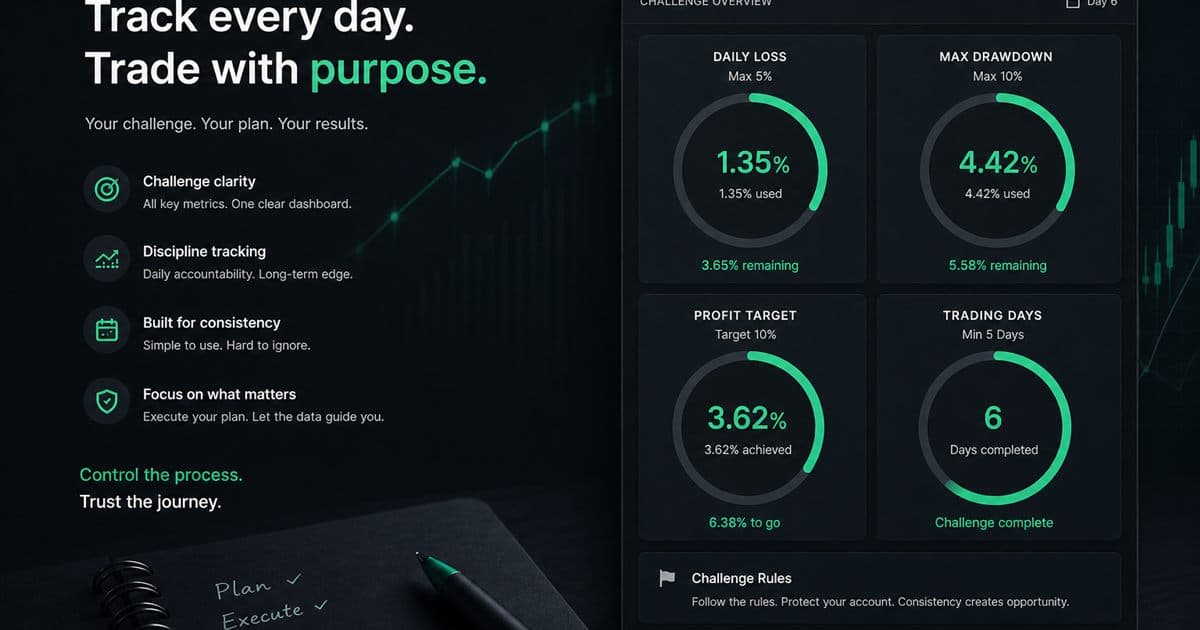
To ensure you stay compliant with FTMO rules, make sure you are constantly tracking your daily loss, drawdown, profit target, and total trading days.
- How to Track an Apex Trader Funding Evaluation in a Journal
Journal an Apex-style futures evaluation: copy live trailing-drawdown and daily-loss headroom from Apex’s dashboard, log ES/NQ screenshots, and treat consistency and news restrictions as rule types—not frozen percentages.
- Prop Firm Drawdown Tracker: Journal Plus Calculator, Not the Firm Dashboard
How to track prop-firm and FTMO-style drawdown with a personal journal, a free drawdown calculator, and the firm's official metrics. TradeLogger does not replace the evaluator dashboard.
- Connect cTrader to your trading journal with Open API OAuth
Link cTrader through Spotware Open API OAuth in TradeLogger to see balance, equity, deal P/L, and fill import into journal rows next to your screenshot journal.
- Prop Firm Trading Journal: Track Rules Before You Blow Up
Tracking your progress during proprietary firm challenges requires disciplined journaling. You must rigorously track daily loss, maximum drawdown, profit targets, and the number of trading days.
- Futures Prop Trailing Drawdown and Consistency Checklist
A checklist of trailing-drawdown and consistency rule types for US futures evaluations (Topstep, Apex, and similar). Copy live numbers from the firm. No frozen percents or prices.
- How to Track a Topstep Evaluation in a Trading Journal
Journal a Topstep-style futures evaluation: copy live daily-loss and trailing-drawdown headroom from Topstep’s dashboard, log ES/NQ screenshots, and measure consistency without inventing current rule numbers.
- Forex Trading Journal: Fields, Sessions, and Review Guide
Build a forex trading journal around pair, session, spread, risk in R, chart evidence, execution, and a repeatable weekly review.
Get the free overlay
Download Pinelive Funded Targets, attach it on cTrader, then journal the session with screenshots so the HUD is evidence, not a vibe.
Download free indicator