Integrations · 5 min read
How to Connect OANDA to Your Trading Journal
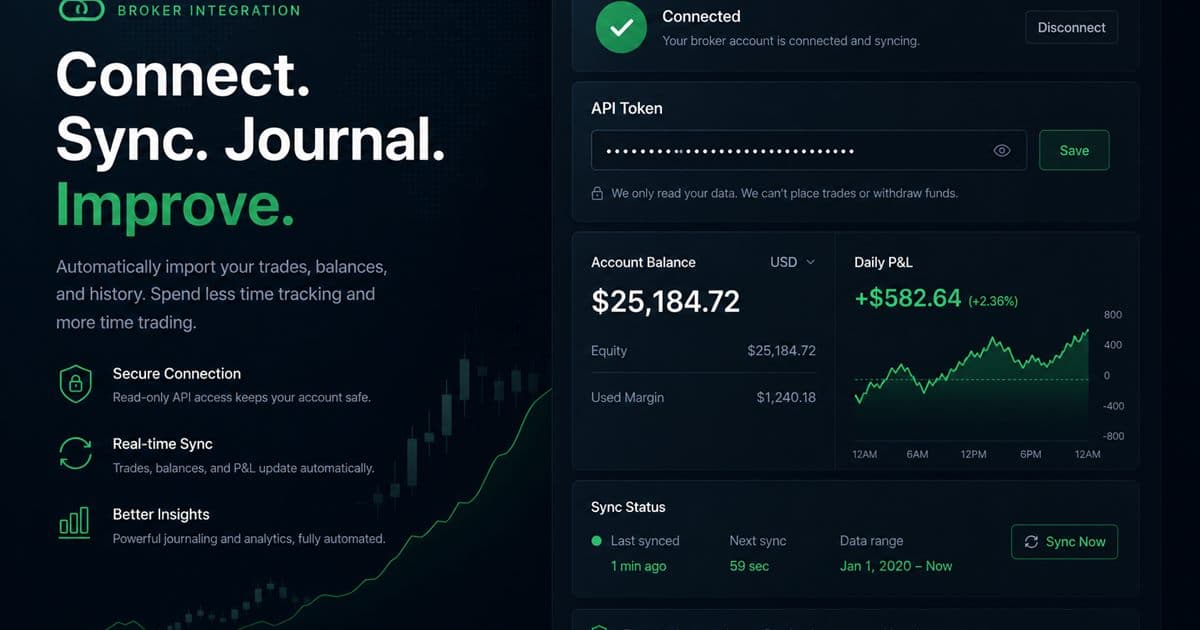
To connect OANDA, just link it using your API token, and you can monitor everything—your balance, daily P&L, and win/loss stats—right inside TradeLogger.
Updated 2026-10-20 · TradeLogger Research
Quick answer
First, you need to generate your OANDA API token within the OANDA hub. Once you have that token, simply paste it into the dedicated OANDA page in TradeLogger. After that, make sure you keep meticulous journaling of your setups, complete with screenshots.
Linking OANDA data into your trading journal really helps when you need the hard, account-level figures right beside the qualitative evidence for each trade decision. TradeLogger provides an optional OANDA API token connection through /dashboard/oanda, giving you the necessary context for tracking balances and daily P&L. Keep in mind, though: this feature isn't a replacement for manually recording the specific setup, the risk decision, or the exact chart state that actually produced those numbers.
Run two tracks: OANDA account stats, and a screenshot journal with editable fields. A red day shows magnitude; the marked chart, setup tag, and emotion note show whether the loss was variance or a preventable miss. This how-to sits under TradingView, OANDA, and cTrader journal integrations and the foundational guide to trading journals.
What does the OANDA connection actually do?
Once the token is connected, the OANDA dashboard provides a quick snapshot of your account performance, allowing you to skip the tedious process of retyping basic figures. This capability is incredibly helpful for daily review, especially when you need to compare what your trading journal reports regarding execution against what the live account reveals about results.
- You can access the connected-account balance right within the dedicated OANDA area.
- You have to check the daily P&L, alongside whatever performance context is currently available.
- Analyze account outcomes against your screenshot-based journal entries.
- These numbers should be utilized as a review aid, not as a trading signal.
You need to keep the scope of this connection very tight. TradeLogger isn't intended here to be a universal broker importer, and this guide does not suggest support for brokers beyond OANDA. If your trading happens elsewhere, use the screenshot and manual confirmation workflow unless TradeLogger clearly lists a supported connection in the product.
How do you connect OANDA to TradeLogger?
- To get started, log into your OANDA account. Once you're in, you'll need to consult OANDA's official account tools or documentation—that's where you generate or retrieve your API token.
- Handle this token with extreme care. Think of it as a private credential—it must be protected rigorously. Under no circumstances should you paste it into a journal note, send it via email, or take a screenshot of it.
- Log into TradeLogger. Once you're signed in, you should open /dashboard/oanda.
- Place the token within the connection field, then proceed to submit.
- Double-check that the anticipated account balance, along with the daily P&L data, has appeared correctly.
- Before you rely on the dashboard, if the figures look suspicious, you absolutely must pause and verify the account, token status, and OANDA environment.
Why keep screenshots after connecting OANDA?
Simply looking at an API balance won't tell you if you were chasing the price, entered before confirmation, shifted a stop, or executed the plan perfectly only to take a valid loss. When a setup is clearly visible, take a screenshot—either from TradingView or the platform itself—and then upload or paste it directly into TradeLogger. Take a moment to check the suggested fields, make any necessary corrections, and be sure to input those specific details that only you know.
- Setup and market-context tag
- We need to look at the planned entry point, the invalidation rules, and the ultimate target logic.
- Risk and final result in R
- The emotional state you carry before you initiate a trade, and how that feeling evolves throughout its management.
- Rule followed or broken
- One sentence on what should be repeated or changed
A useful daily review
Check the OANDA page first, noting how the balance moved and what the day's P&L was. After that, open the related journal entries. Make sure to reconcile any missing screenshots, verify that the results and tags are correct, and distinguish between planned losses and errors made during execution. This way, the account number gets a full explanation instead of having its entire session defined by one green or one red figure.
At the close of the week, categorize your trades based on the setup, the trading session, and adherence to your rules. Next, check if the overall account result aligns with the behavioral patterns documented in your journal. Remember this crucial point: even if a week was profitable, it might still include trades that were overly large or impulsive. Conversely, a losing week could still demonstrate that you executed a sound process cleanly. You absolutely must keep those two judgments separate.
Token and data hygiene
Always use only the least amount of access OANDA provides for the task; stick strictly to their current token guidance, and make sure to revoke any tokens you are no longer using. Never, ever publish a token in support screenshots. If a connection fails to update, don't just repeatedly share the credential—verify it using the official OANDA tools instead. Since product screens and provider instructions are constantly evolving, the current OANDA documentation remains the definitive authority when it comes to creating and managing your credential.
The bottom line
The best way to manage your OANDA trading journal is by combining automated account context with genuine human review. Linking your token can provide easy visibility into balances and daily P&L, saving you a lot of time. But don't lose the specific evidence that makes your performance truly teachable: those chart screenshots, the confirmed fields, the R values, setup tags, and your honest personal notes. If that approach sounds valuable, you could begin with TradeLogger, only connecting OANDA when you feel ready for that integration.
Frequently asked questions
How exactly do I connect my OANDA account inside TradeLogger?+
First, log into TradeLogger and head over to the /dashboard/oanda page. Once you're there, input the OANDA API token and then make sure both the current account balance and the daily P&L are displayed.
What kind of data does the OANDA connection sync?+
This optional connection gives you account-level context, showing figures like balance, daily P&L, and other related performance metrics found within the OANDA dashboard. Keep in mind that it won't automatically turn every chart decision into a complete journal entry.
The core question here is: Does OANDA sync actually replace the need for trade screenshots?+
Hold on. You need to keep uploading screenshots—not just the results—to provide setup context, entry reasoning, invalidation, and post-trade review. The account numbers show us what happened financially, but the screenshots are what help us understand the 'why.'
Do I risk handing over my OANDA API token to anyone?+
Always treat this token as a sensitive credential. You must only enter it into the designated TradeLogger connection screen—never save it in notes or include it in screenshots. Should you suspect that it has been exposed, immediately revoke or replace it using OANDA.
Related guides
- Forex Trading Journal: Fields, Sessions, and Review Guide
Build a forex trading journal around pair, session, spread, risk in R, chart evidence, execution, and a repeatable weekly review.
- Connect cTrader to your trading journal with Open API OAuth
Link cTrader through Spotware Open API OAuth in TradeLogger to see balance, equity, and deal-based daily P/L next to your screenshot journal.
- TradeLogger Trading Journal App: Workflow, Fit, and Limits
A transparent guide to TradeLogger's screenshot-first capture, editable AI extraction, tags, calendar review, best-fit users, and limitations.
- How to Journal NinjaTrader Trades with Screenshots or Exports
Journal NinjaTrader (NT) futures from chart screenshots or a CSV/export file. TradeLogger has no NinjaTrader API. Confirm fields, tag the New York session, and review in R.
- How to Journal Tradovate Trades with Screenshots or Exports
Journal Tradovate futures from chart screenshots or an export. TradeLogger has no Tradovate API. Confirm fields, tag the New York session, and review ES/NQ in R.
- The 212 Trading Journal: My Honest Look at the Screenshot Workflow
A Guide to Creating a Trading 212 Journal: Tracking Chart Screenshots, Using Verified Fields, Standardizing Tags, and Implementing Calendar Reviews—All While Avoiding Claims About Unsupported API Sync.
- How to Import Trades from TradingView
Journal TradingView trades honestly with a screenshot-first workflow: paste or upload charts, confirm suggested fields, and add setup context.
Add context to OANDA results
Use the optional connection for account figures, then keep the decision record with screenshots and tags.
Sign up